
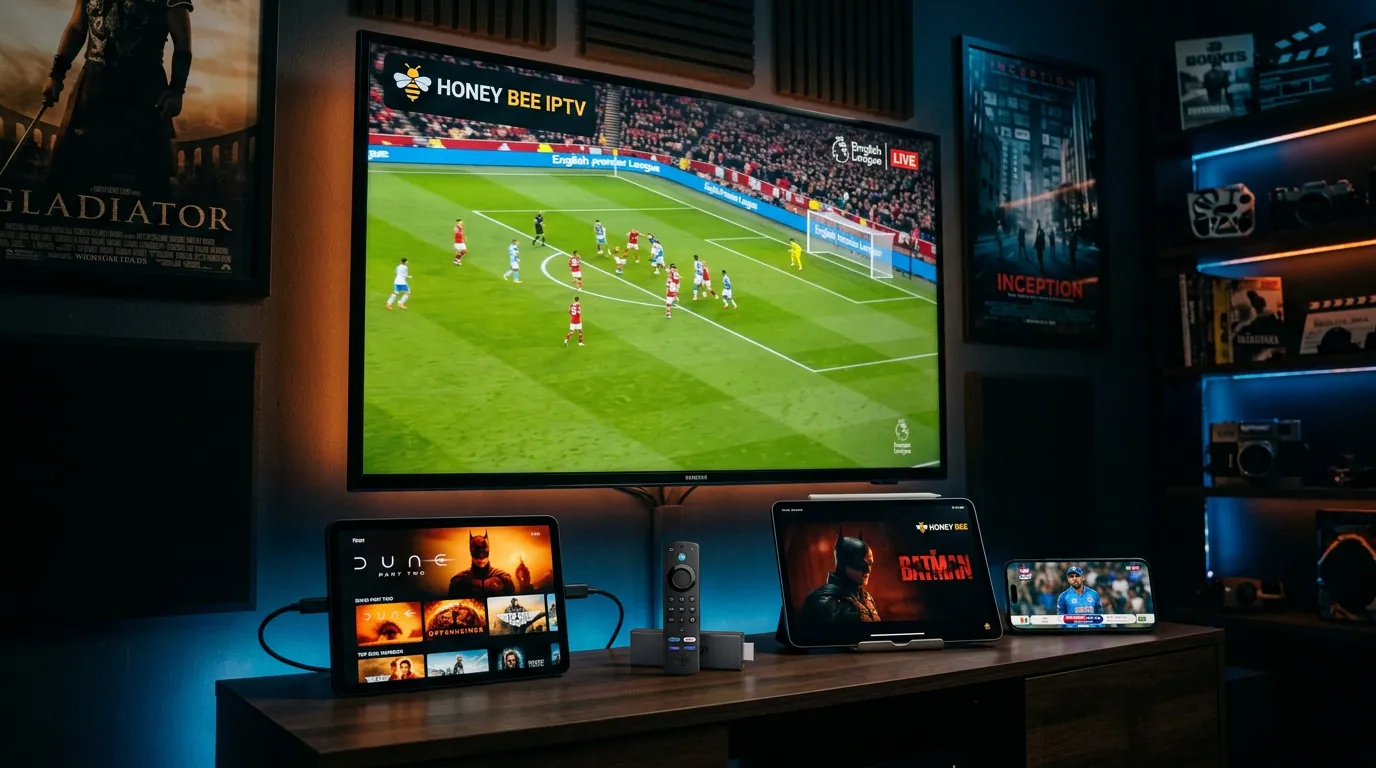
Honey Bee IPTV Setup Guide for Every Device
Follow our easy step-by-step instructions to install and configure Honey Bee IPTV on your favourite device. Works with Firestick, Smart TVs, Android, iOS, and more.
Which Device Should You Set Up First?
You can install Honey Bee IPTV on everything you own, but do not start everywhere. Set up one device, confirm it plays at your peak hour, then add the rest. The order below saves you the most common hour of frustration.
Start with the Fire TV Stick 4K Max
It is about $55, Wi-Fi 6, and every recommended app installs on it in minutes. The cheaper Fire TV Stick Lite works, but the 4K Max loads channel lists and EPG noticeably faster. If you buy one device for this, buy the 4K Max.
Use the built-in TV app only if the TV is 2018 or newer
Samsung Tizen and LG WebOS sets from 2018 onward run Smart IPTV and IPTV Smarters fine. Older sets feel fine for a week, then stutter on big match nights when the EPG and VOD libraries load. A 2016 TV with a $55 Firestick beats a 2016 TV alone every time.
Add your phone or tablet second, not first
Mobile apps are the fastest install, but a phone screen will not tell you how the service holds up on a real TV at game time. Prove it on the big screen first, then set up mobile for the commute and the cottage.
🔥 Amazon Firestick Setup Guide
The most popular device for IPTV streaming in Canada. The Firestick is affordable, easy to set up, and supports all major IPTV apps.
Open Developer Options
Go to Settings > My Fire TV > Developer Options
Enable Unknown Sources
Enable "Apps from Unknown Sources"
Get the Downloader App
Download the "Downloader" app from Amazon App Store
Enter the App URL
Open Downloader and enter the app URL provided
Install the IPTV App
Install the IPTV app and open it
Enter Your Credentials
Enter your login credentials (sent via email after subscribing)
Start Watching
Start watching 24,000+ channels on your Firestick!
📺 Android TV Box Setup Guide
Perfect for any Android-based TV box or smart TV. Android TV boxes offer the widest app compatibility and easy Google Play Store access.
Open the Play Store
Open Google Play Store on your Android TV
Search for an IPTV App
Search for your preferred IPTV app
Install the App
Install the app (IPTV Smarters recommended)
Select Login Method
Open the app and select "Login with Xtream Codes API"
Enter Credentials
Enter your credentials provided via email
Wait for Channels
Wait for channels to load
Enjoy Streaming
Enjoy streaming!
📺 Samsung Smart TV Setup Guide
Direct app installation for Samsung Tizen TVs. Samsung Smart TVs support several IPTV apps directly from the Samsung App Store.
Go to Home Screen
Press Home on your Samsung remote
Open Apps
Navigate to Apps
Search for IPTV App
Search for "Smart IPTV" or "IPTV Smarters"
Install the App
Install the app
Note the MAC Address
Open the app and note the MAC address
Contact Support
Send MAC address to our support for activation
Restart and Enjoy
Restart the app and enjoy!
📺 LG Smart TV Setup Guide
Easy setup for LG WebOS televisions. LG Smart TVs support IPTV apps through the LG Content Store or via USB sideloading.
Go to Home Screen
Press Home on your LG remote
Open the Content Store
Open the LG Content Store
Find the IPTV App
Search for "Smart IPTV" or download via USB
Install and Open
Install and open the app
Note the MAC Address
Note down the MAC address displayed
Contact Support
Contact our support with your MAC address
Start Watching
Restart the app to start watching
📱 Android Phones & Tablets Setup Guide
Watch on the go with your Android device. Honey Bee IPTV works great on Android phones and tablets for streaming anywhere with a Wi-Fi or mobile data connection.
Open the Play Store
Open Google Play Store
Search for the App
Search for "IPTV Smarters Pro"
Install the App
Install the app
Select Login Method
Open and tap "Login with Xtream Codes API"
Enter Your Details
Enter your username, password, and server URL
Wait for Channels
Wait for channels to load
Stream Anywhere
Start streaming anywhere!
🍎 iPhone & iPad Setup Guide
Premium streaming on your Apple devices. iOS supports several high-quality IPTV players available directly from the App Store.
Open the App Store
Open the App Store
Search for an IPTV App
Search for "IPTV Smarters" or "GSE Smart IPTV"
Download and Install
Download and install the app
Add a Playlist
Open the app and add a new playlist
Choose Login Method
Choose Xtream Codes API login method
Enter Credentials
Enter your credentials
Enjoy Streaming
Enjoy Honey Bee IPTV streaming on iOS!
⭐ TiviMate Setup Guide
The best IPTV player with premium features. TiviMate offers a modern interface, EPG support, catch-up, recording, and multi-playlist management.
Download TiviMate
Download TiviMate from Google Play or sideload
Add a Playlist
Open TiviMate and tap "Add Playlist"
Select Xtream Codes
Select "Xtream Codes"
Enter Server Details
Enter Server URL, Username, and Password
Load Channels
Tap "Next" and wait for channel loading
Customize Settings
Customize EPG and interface settings
Enjoy the Experience
Enjoy the best Honey Bee IPTV experience!
Before You Install: Three Things That Save You an Hour
Most setup problems are not app problems. They are credentials, speed, or throttling, and each takes two minutes to rule out before you touch a single setting.
Open your welcome email before you open the app
Your username, password, and server URL arrive by email from [email protected] after checkout or the trial. The single most common failure is a capital O typed as a zero, or a trailing space pasted after the server URL. Copy and paste each field, then check for the stray space. If the email has not arrived in five minutes, check spam before you write to support.
Run a speed test on the streaming device itself
Not on your phone on the same Wi-Fi, on the stick or TV you will watch on. You want 25 Mbps down and 10 Mbps up for 4K. Below that, a $15 Ethernet adapter for the Firestick fixes more buffering than any setting inside any app.
Test once at your real viewing hour
Comcast, Spectrum, and AT&T all throttle streaming traffic at peak evening hours. If the service is perfect at 2 PM but buffers at 9 PM, that is throttling, not the app. The two-minute proof: switch the device to your phone's mobile hotspot at the same hour. If the picture instantly stabilizes on hotspot, your home provider is the bottleneck: contact support and we will move your line to another route.
Quick Answers About the Honey Bee IPTV App
The questions support answers every day, in the words people actually type.
Which device should I install Honey Bee IPTV on first?
The Fire TV Stick 4K Max. It is the fastest cheap stick, every recommended app installs on it, and it is the device support can walk through blind. Set it up there first, then add your TV or phone.
Which IPTV app should I use with Honey Bee IPTV?
IPTV Smarters Pro is the easiest start. TiviMate Premium (about $10 a year) is the better daily player if you want a real EPG grid and favourites. Pick one; installing three players splits your connections.
What internet speed do I need for Honey Bee IPTV?
25 Mbps down and 10 Mbps up on the streaming device itself, tested at the hour you actually watch. A fast plan on paper means nothing if your provider throttles streaming traffic at night.
Why do I get authorization failed when my password is right?
Nine times out of ten it is a capital O typed as a zero, a trailing space pasted after the server URL, or an expired line. Retype the credentials by hand before you reinstall anything.
Can I watch Honey Bee IPTV on more than one device?
Yes. Your plan covers simultaneous connections, so a Firestick in the living room and a phone on the go both work at once. Each extra concurrent stream uses one connection.
Should I test Honey Bee IPTV before paying?
Yes. Take the 24-hour free trial and run it at your peak viewing hour, a live game or a Saturday night, not a quiet Tuesday morning. If it holds at your busiest hour, it will hold all week.